Upstream Notes 1: Let's Download Some Data!

If you've ever read a bioinformatics paper and thought, "I'd love to get my hands on that data for a reanalysis" — you're definitely not alone.
The first step is usually hunting for a mysterious accession code in the "Data Availability" section. For example, in this paper (Pakula et al.), the authors deposited their data in the GEO database under accession numbers GSE244267, GSE244269, and GSE248466, and also referenced several publicly available datasets with their corresponding accessions. Say we want to download the mouse single-cell data under GSE244269 — how do we do it?
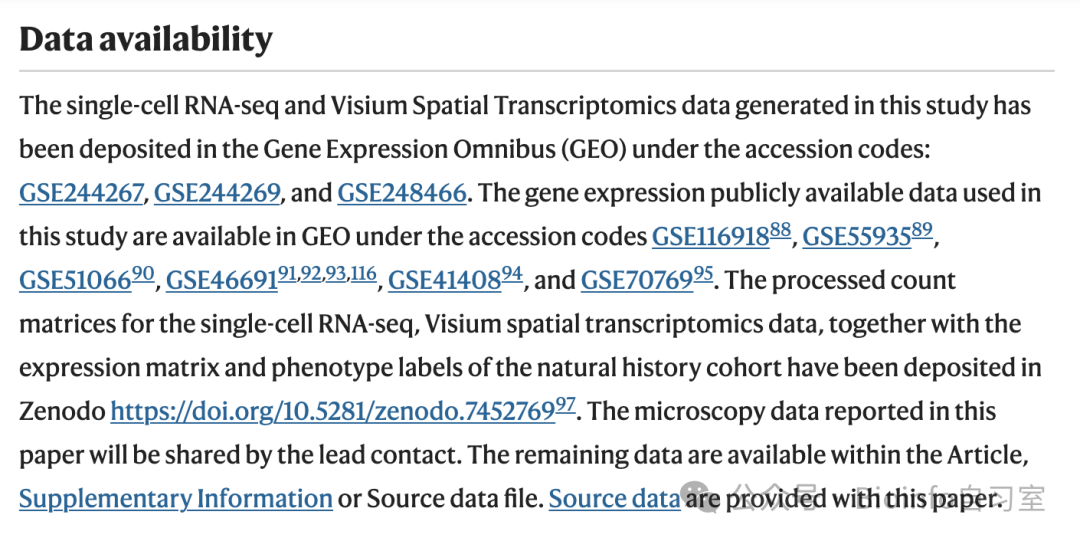
Source: Pakula H, Omar M, Carelli R, Pederzoli F et al. Distinct mesenchymal cell states mediate prostate cancer progression. Nat Commun 2024 Jan 8;15(1):363. PMID: 38191471
The Easy Case: Downloading an Expression Matrix Directly from GEO
That GSE-prefixed code is the dataset's accession number in GEO (Gene Expression Omnibus), NCBI's public repository for gene expression data. Authors typically deposit processed expression data on GEO — most commonly as expression matrices in various formats, though some also upload Seurat or AnnData objects directly. The processing may include steps like quality control (QC/filtering), normalization, scaling, and log-transformation.
In most cases, a processed expression matrix is all you need for a secondary analysis. These files are also relatively manageable in size (bulk RNA-seq matrices are typically a few MB to tens of MB; single-cell matrices can range from a few hundred MB to several GB), so an ordinary laptop can usually handle them.
How do you know what format the authors used? Scroll to the bottom of the GEO dataset page and look at the "Supplementary file" section — that's where downloadable files are listed. You can usually infer the data format from the file extension:
- .txt / .csv — Most likely an expression matrix with gene names and sample names (or cell barcodes). Common for bulk RNA-seq; for single-cell, it's probably a matrix exported after processing.
- .h5 — The raw single-cell expression matrix generated by the CellRanger pipeline (HDF5 format).
- .tsv / .mtx — Another common format for raw single-cell count matrices. A single sample is represented as three files: one for gene information, one for barcodes, and one for the expression values (the sparse matrix).
- .rds — Likely a serialized R object, such as a Seurat or SingleCellExperiment object — i.e., the data processed in R.
- .h5ad — Likely an AnnData object — data processed in Python, typically using Scanpy.
File names can also be informative. For GSE244269, the authors deposited the data as .h5ad AnnData objects (suggesting they analyzed the data using Scanpy in Python), containing only stromal cells, as shown below.
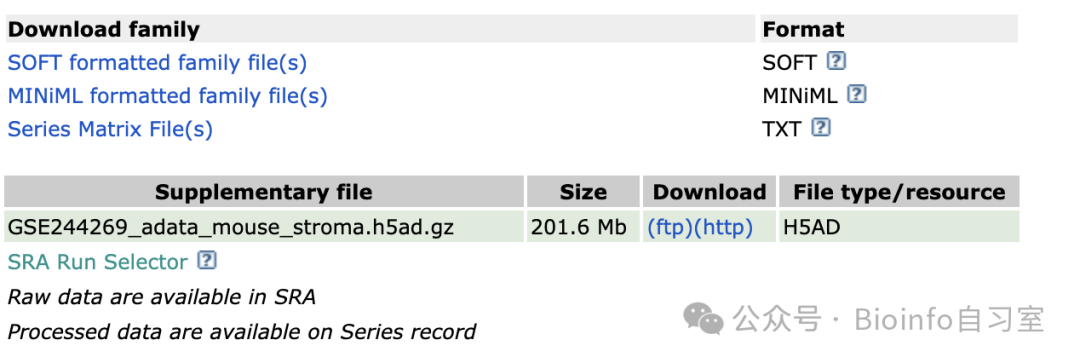
Click on (ftp) or (http) under the Download column to grab the file.
The Harder Case: Downloading Raw FASTQ Files from SRA
Sometimes the authors don't upload an expression matrix to GEO, or the files turn out to be corrupted, incomplete, or in an unusable format — or maybe you specifically need the raw data. Don't despair! In these situations, you can download the raw sequencing reads from SRA (Sequence Read Archive), NCBI's repository for raw high-throughput sequencing data.
As the name implies, SRA stores the raw DNA or RNA reads — i.e., FASTQ files. These cannot be used directly; they require further processing (quality control, alignment, quantification, etc.) before they're ready for analysis. Think of it this way: SRA is the warehouse of raw data; GEO is more like a curated display of processed results.
One important caveat: because high-throughput sequencing generates hundreds of millions of reads per run, individual FASTQ files are typically measured in gigabytes — and there are usually many of them. Processing FASTQ files is also computationally intensive, so we strongly recommend using a high-performance server or cloud computing environment rather than a local laptop.
Installing SRA Toolkit
Files above a certain size cannot be downloaded from SRA through a web browser. Instead, you'll need to use the command-line SRA Toolkit, specifically the prefetch and fasterq-dump commands.
Here's how to install SRA Toolkit on a CentOS Linux server:
# Navigate to the home directory (or any preferred directory)
cd $HOME
# Download the installation package
wget --output-document sratoolkit.tar.gz \
  https://ftp-trace.ncbi.nlm.nih.gov/sra/sdk/current/sratoolkit.current-centos_linux64.tar.gz
# Extract the archive
tar -xzvf sratoolkit.tar.gz
# Add the binaries to your PATH
export PATH=$PATH:$HOME/sratoolkit.3.1.1-centos_linux64/bin
# Confirm the installation directory
pwd
The same steps apply for Mac and Ubuntu users — just adjust the filename suffix (the part after sratoolkit.x.y.z-) to match your platform:
- Apple Silicon Mac:
mac-arm64 - Intel Mac:
mac64 - Ubuntu:
ubuntu64
Windows users have a slightly different workflow: download the installer manually, extract it, open the Command Prompt (cmd.exe), and navigate to the extracted directory (e.g., cd Desktop). For more detailed platform-specific instructions, refer to the official SRA Toolkit wiki.
Testing the Installation
Run the following to verify that SRA Toolkit is installed correctly:
prefetch --version
fasterq-dump --version
If you see output like prefetch : 3.1.1 (similarly for fasterq-dump), you're good to go.
Note: If you close the terminal or restart the machine after installation, the toolkit will no longer be in your PATH and you'll get a prefetch not found error. You'll need to re-run the PATH export command:
export PATH=$PATH:$HOME/sratoolkit.3.1.1-centos_linux64/bin
To make the change permanent, add the line to your shell configuration file:
# Open .bashrc or .bash_profile for editing
nano ~/.bashrc

# Add the following line (adjust the path if you extracted elsewhere):
export PATH=$PATH:$HOME/sratoolkit.3.1.1-centos_linux64/bin

# Save and exit: press Ctrl+X, then Y to confirm
If you extracted the toolkit to a directory other than $HOME, replace $HOME with the full path to that directory.
Finding the SRA Accession Numbers
In the GEO screenshot from earlier, you'll notice a note at the bottom of the page: "Raw data are available on SRA", followed by a link to the SRA Run Selector. Click that link and you'll be taken directly to the SRA page for this dataset:
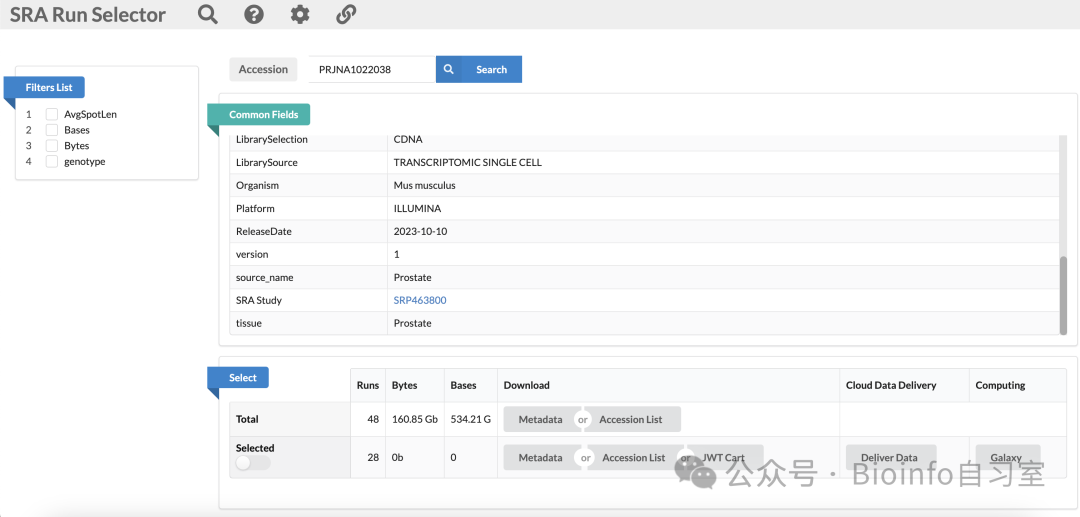
This dataset contains 48 FASTQ files corresponding to 17 samples — 11 from the transgenic (Tg) model and 6 from wild-type controls (littermates or background). We'll select the 28 runs from the transgenic model. Click the Accession List button in the "Selected" section to download a text file containing all the run accession numbers. It should look something like this:
SRR_Acc_List.txt
SRR26213683
SRR26213684
SRR26213685
...
Downloading FASTQ Files
Downloading from SRA is a two-step process: first use prefetch to download the .sra file, then use fasterq-dump to extract the FASTQ reads from it. Here's the code:
# Download a single SRA file (e.g., SRR26213683)
prefetch SRR26213683

# Extract FASTQ files (for conventional bulk RNA-seq)
fasterq-dump SRR26213683.sra

# Extract FASTQ files (for 10x Genomics single-cell RNA-seq)
fasterq-dump --split-files --include-technical SRR26213683.sra

# Download all accessions from the list at once
cat SRR_Acc_List.txt | xargs prefetch

# Extract FASTQ files for all downloaded SRA files in a loop (single-cell example)
for file in SRR*/; do
  fasterq-dump --split-files --include-technical "$file"
done
After a successful download, you should have 3–4 FASTQ files per sample. In order, they correspond to:
- I1 — i7 index read
- I2 — i5 index read (may be absent)
- R1 — cell barcode + UMI
- R2 — biological cDNA sequence (the actual transcript read)
If you're missing one file, it's almost certainly I2 — that's normal for many library types.
⚠️ Important: When downloading 10x single-cell data, always include the
--include-technicalflag. By default, SRA treats the 10x I1/I2 and R1 reads as technical reads and omits them — but we need them for barcode demultiplexing.
That's a wrap for this installment! In the next post, we'll walk through how to run the CellRanger pipeline on these data. Stay tuned!
Originally posted on WeChat Official Account: bioinfo_studyroom