Linux Tips: How to Run Commands in the Background

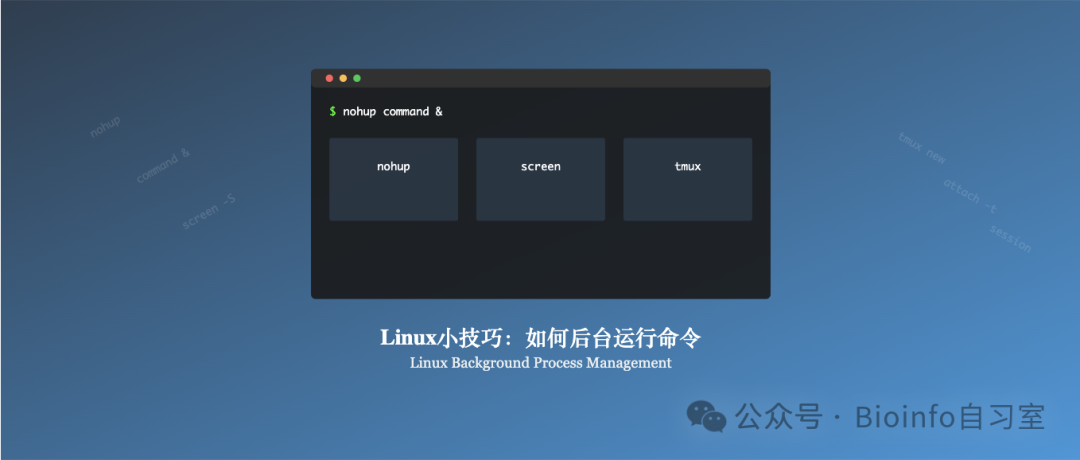
Many bioinformaticians work on servers that don't have a job scheduler like SLURM, which means all commands must be run interactively in the foreground. But do you really need to babysit the terminal the whole time? What happens if your internet drops, the power goes out, or you accidentally close the terminal window — wiping out hours of computation? Today I'll share some handy tricks for "letting programs run on their own" on a remote server, so you never have to worry about losing a long-running job again.
The Simplest Solution: nohup
If you just want a program to keep running after you disconnect, the most basic tool is the nohup command:
nohup your_command &
For example:
nohup cellranger count --id=sample1 ... > run.log 2>&1 &
This runs the program in the background and redirects all output to run.log. Even if you close the terminal or lose your connection, the job will keep going. The trailing & sends the process to the background; 2>&1 redirects stderr to the same log file as stdout.
The downside of nohup is that you can't easily check on the job's live progress. To see what's happening, you have to dig through the log file — not the most elegant experience.
Intermediate Solution: screen
screen is a classic terminal multiplexer. Think of it as creating a "virtual terminal" for your job that persists on the server. You can detach from it at any time, and re-attach later as if you never left.
No sudo privileges? No problem. On shared servers where you don't have root access, you can install screen via conda:
conda install -c conda-forge screen
Or compile it from source into your home directory:
# Download the source code
wget https://ftp.gnu.org/gnu/screen/screen-4.9.0.tar.gz
# Extract
tar -xzf screen-4.9.0.tar.gz
cd screen-4.9.0
# Configure and install to your home directory
./configure --prefix=$HOME/.local
make && make install
# Add to PATH
echo 'export PATH=$HOME/.local/bin:$PATH' >> ~/.bashrc
source ~/.bashrc
Basic screen Usage
1. Create a new session:
screen -S my_run # my_run is the session name; pick anything you like
2. Run your command inside the session:
# Just an example
cellranger count --id=sample1 ...
3. Detach from the session (leave it running in the background):
Press Ctrl+A, then press D
4. Re-attach to the session:
screen -r my_run
5. List all sessions:
screen -ls
6. Close a session:
Re-attach to the session you want to close, then type exit.
Simple, right? You can run multiple screen sessions at once — one for a cellranger job, another for an R analysis — and jump between them as needed. Closing your terminal doesn't affect anything; just log back into the server and re-attach.
Advanced Solution: tmux
If you find screen a bit dated, give tmux a try. tmux is more modern, has a cleaner interface, and offers more features. Like screen, it doesn't require root privileges:
Install via conda:
conda install -c conda-forge tmux
Or compile from source:
# Download the source code
wget https://github.com/tmux/tmux/releases/download/3.3a/tmux-3.3a.tar.gz
tar -xf tmux-3.3a.tar.gz
cd tmux-3.3a
# Configure and install
./configure --prefix=$HOME/.local
make && make install
# Add to PATH
echo 'export PATH=$HOME/.local/bin:$PATH' >> ~/.bashrc
source ~/.bashrc
Basic tmux Usage
- Create a new session:
tmux new -s my_run - Detach (leave running):
Ctrl+B, thenD - Re-attach:
tmux attach -t my_run - List all sessions:
tmux ls
Tips
On a shared server, be mindful not to open too many concurrent sessions — excessive resource consumption affects everyone. Also, regardless of which method you use, always redirect output to a log file for easy inspection:
your_command > run.log 2>&1
With tmux or screen, you can open multiple windows side by side — run your program in one pane and monitor the log in another:
# In tmux: press Ctrl+B, then C to create a new window
# In the new window:
tail -f run.log    # Follow the log in real time
With these tools in your toolkit, network drops and power outages will never cut short a long analysis again! Which method do you prefer for running jobs on a server? Share your setup in the comments!
Originally posted on WeChat Official Account: bioinfo_studyroom