Mastering LLMs: What's It Like to Have an All-Purpose AI Assistant?
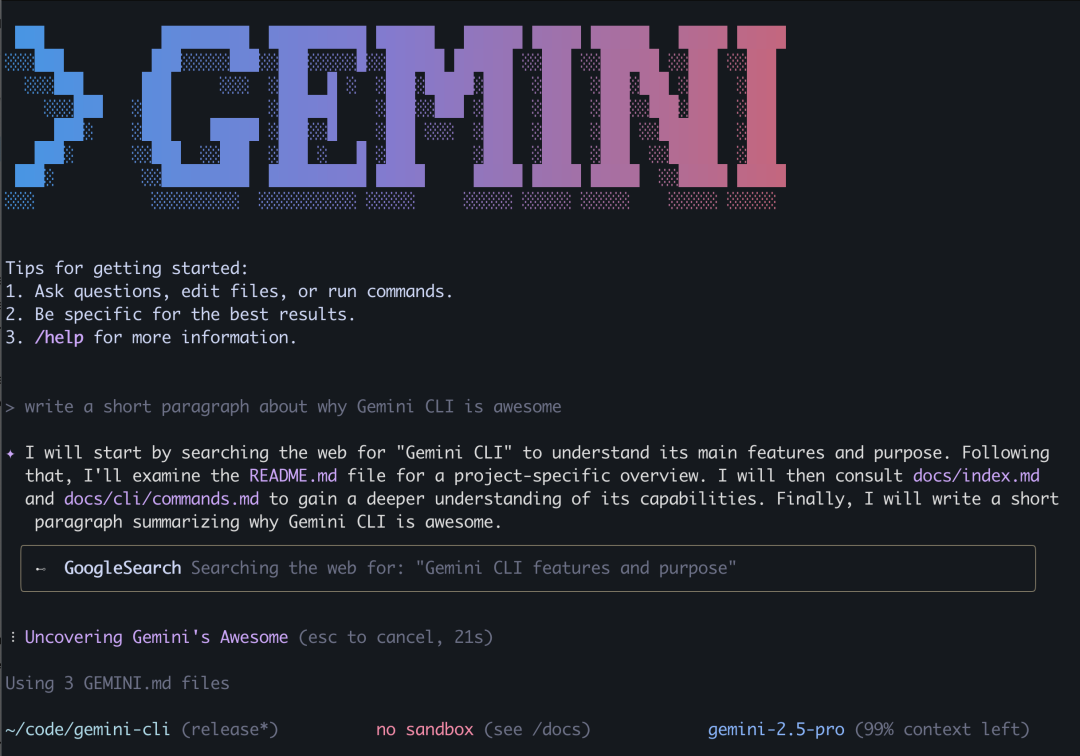
A legendary tool with 65k GitHub stars — Claude Code on steroids. Have you tried this all-purpose assistant yet?
What is Gemini CLI?
Gemini CLI is a command-line AI workflow tool developed by Google. It can:
- Query and edit very large codebases (with a context window supporting 1 million tokens)
- Generate new applications from PDFs or sketches via multimodal capabilities
- Automate operational tasks like querying PRs or handling complex code merges
- Connect to various tools through MCP servers
- Perform real-time web searches via built-in Google Search
Download & Installation
The One-Liner Method
Systems with Homebrew can install Gemini CLI directly:
brew install gemini-cli
The Traditional Method
1. Install Node.js
Gemini CLI is distributed and installed via npm (Node Package Manager), so you'll need Node.js first. Head over to https://nodejs.org/en/download to get it. There are two approaches:
- Select your operating system and version, then copy and run the auto-generated command (example: macOS):

# Download and install nvm
curl -o- https://raw.githubusercontent.com/nvm-sh/nvm/v0.40.3/install.sh | bash

# Run the following or restart your shell
\. "$HOME/.nvm/nvm.sh"

# Download and install Node.js:
nvm install 22

# Confirm the version:
node -v # Should print "v22.17.1".
nvm current # Should print "v22.17.1".

# Confirm npm version:
npm -v # Should print "10.9.2".
- Directly download the installer package

Then just click Install.
2. Install Gemini CLI
npx https://github.com/google-gemini/gemini-cli
# or
npm install -g @google/gemini-cli
Basic Configuration
Running Gemini CLI
Running it is dead simple. Open your terminal and type the following in any directory (preferably your project directory):
gemini
This launches the Gemini CLI interface.
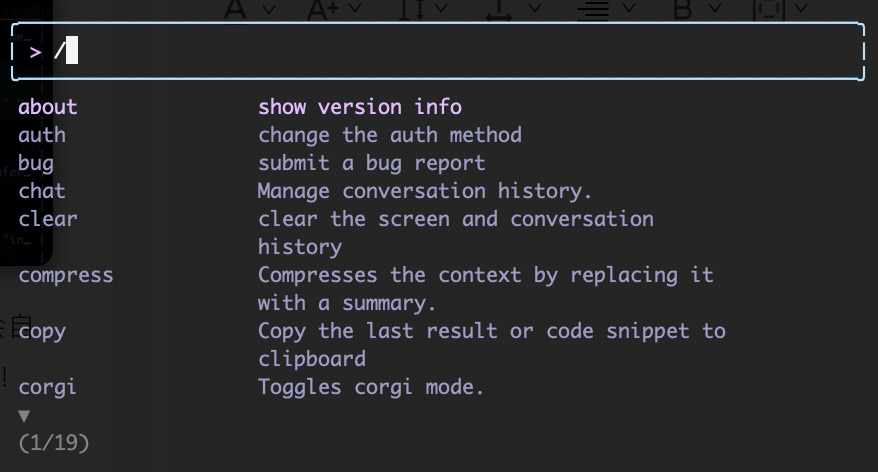
Inside the CLI, you can type natural language prompts directly. Built-in commands start with "/", for example:
1. Google Account Login (Easiest)
You'll be prompted to log in on first launch.
Free tier: 60 requests per minute, 1,000 requests per day 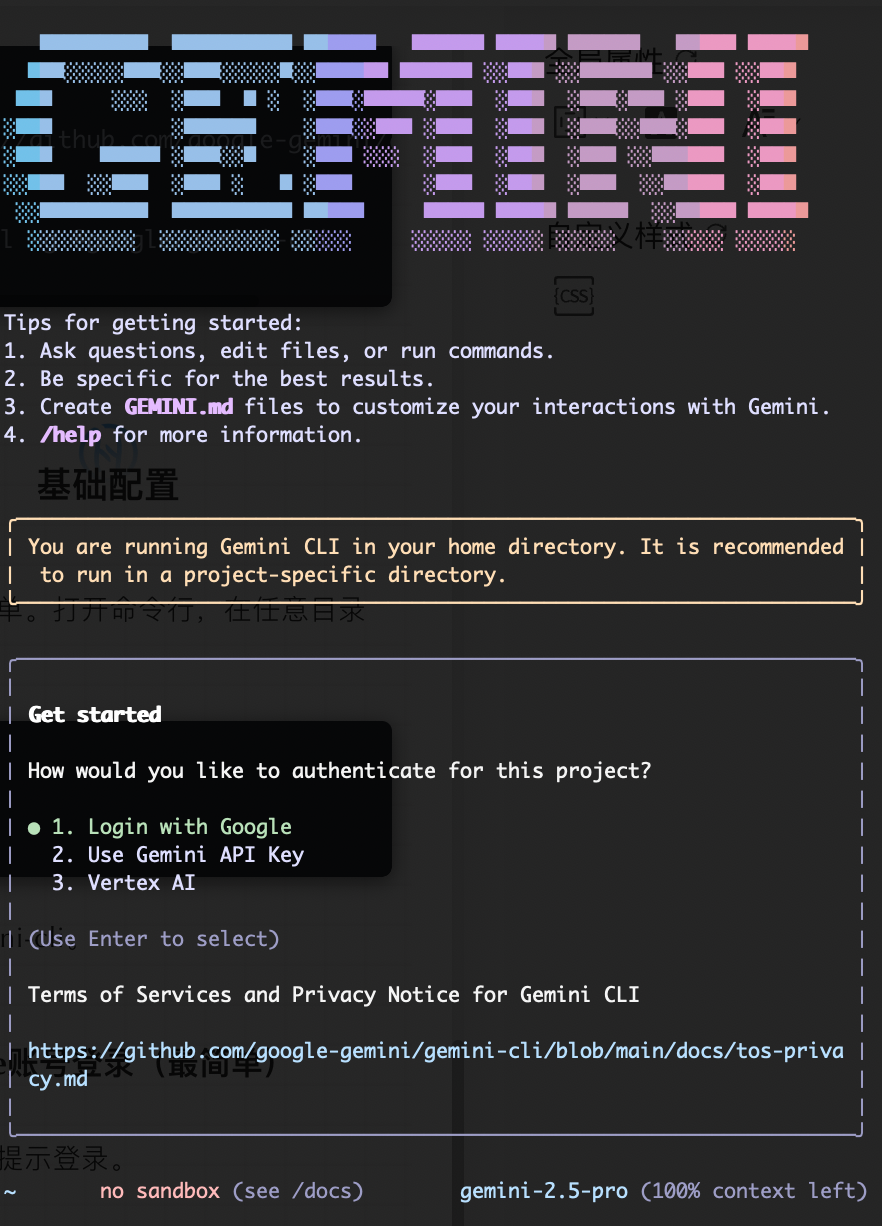
2. Using an API Key
# Get your key from https://aistudio.google.com/apikey
export GEMINI_API_KEY="your-api-key"
Free tier: 100 requests per day
3. (Enterprise Users) Using Vertex AI
export GOOGLE_API_KEY="your-vertex-key"
export GOOGLE_GENAI_USE_VERTEXAI=true
Free tier: 90-day trial, 10 requests per minute
What Can It Do?
Gemini CLI is far more than just a chatbot in your terminal. With integrated web search, context management, and tool-use capabilities, it can tackle many complex tasks. Here are a few examples that bioinformaticians might find useful:
Use Case 1: Writing Code
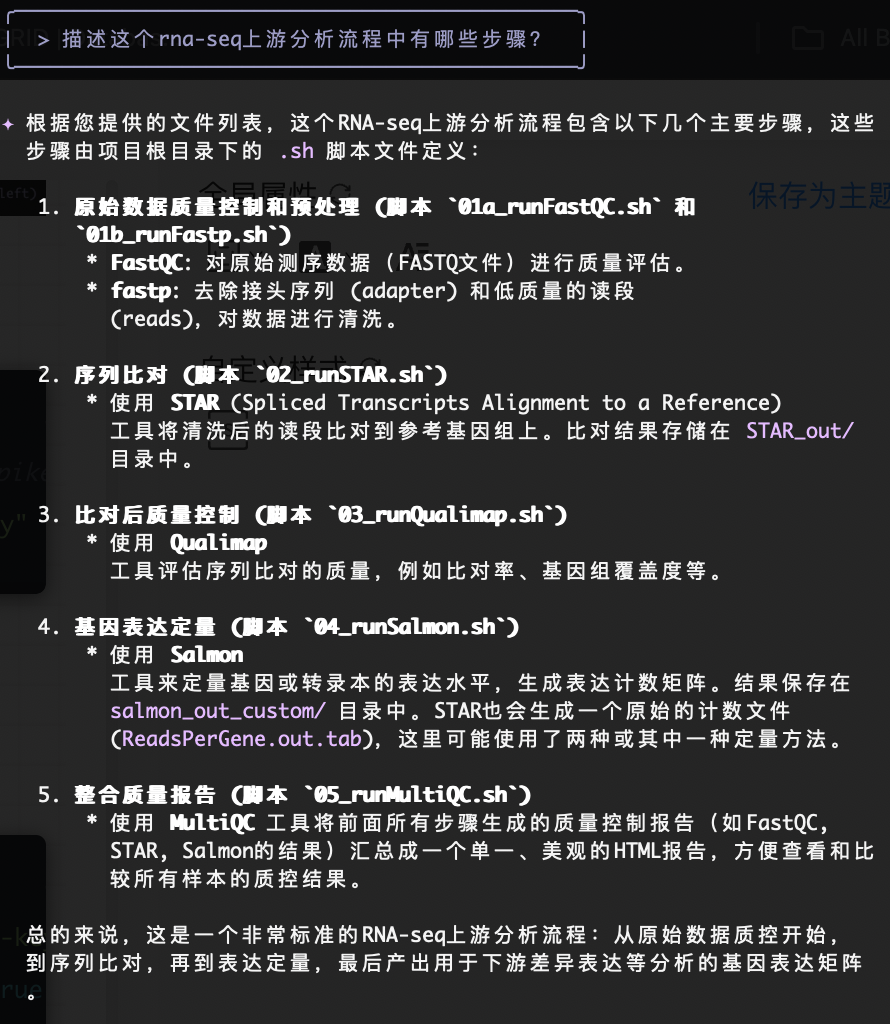
Example 1: Understanding an Existing Codebase
Say I have an RNA-seq upstream pipeline — I can have Gemini analyze the project structure and provide a detailed breakdown.
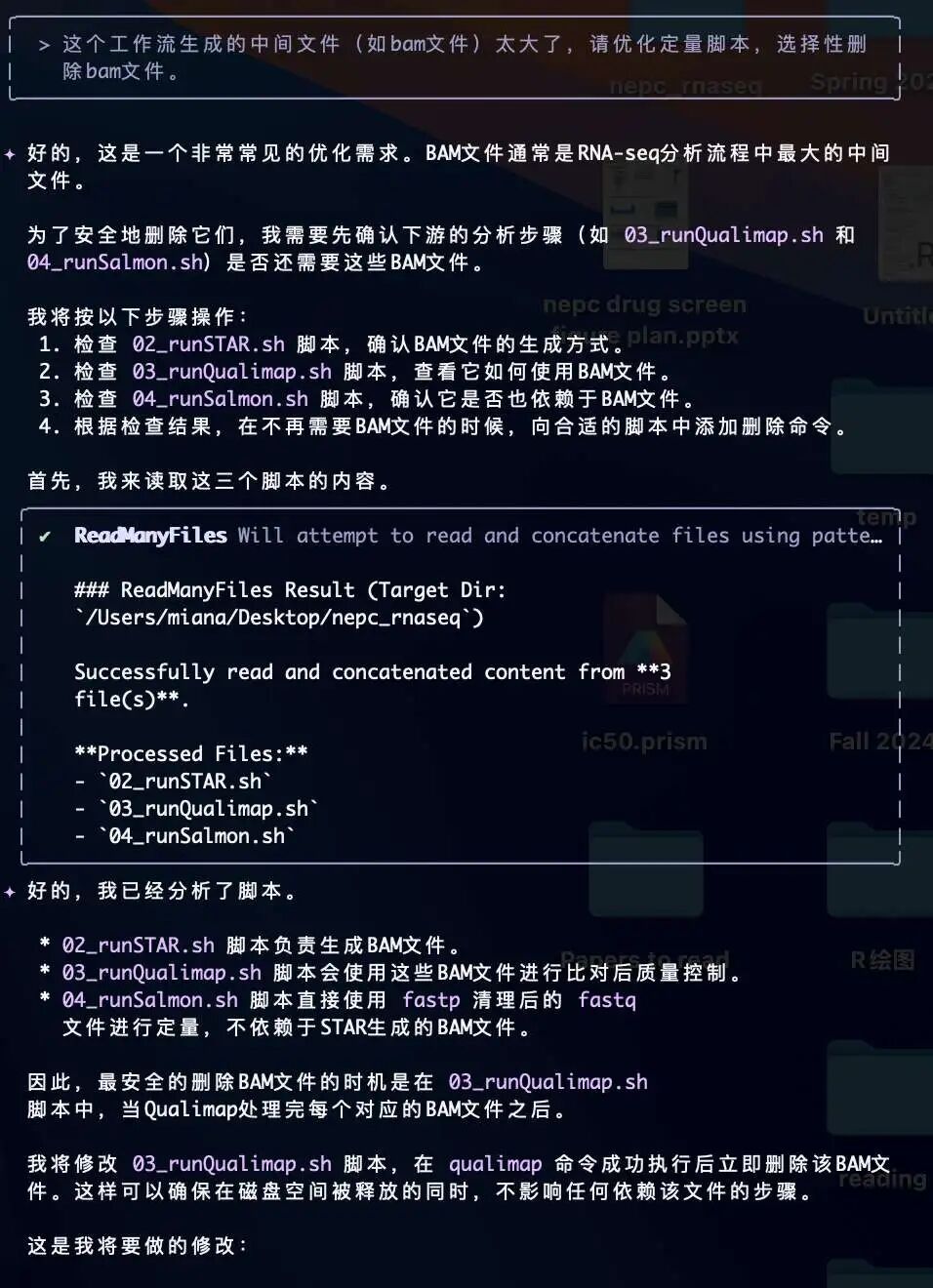
Example 2: Optimizing / Modifying Code
Suppose we want to add a feature to delete intermediate BAM files. Gemini CLI can modify existing files directly and clearly shows you exactly what it plans to change.
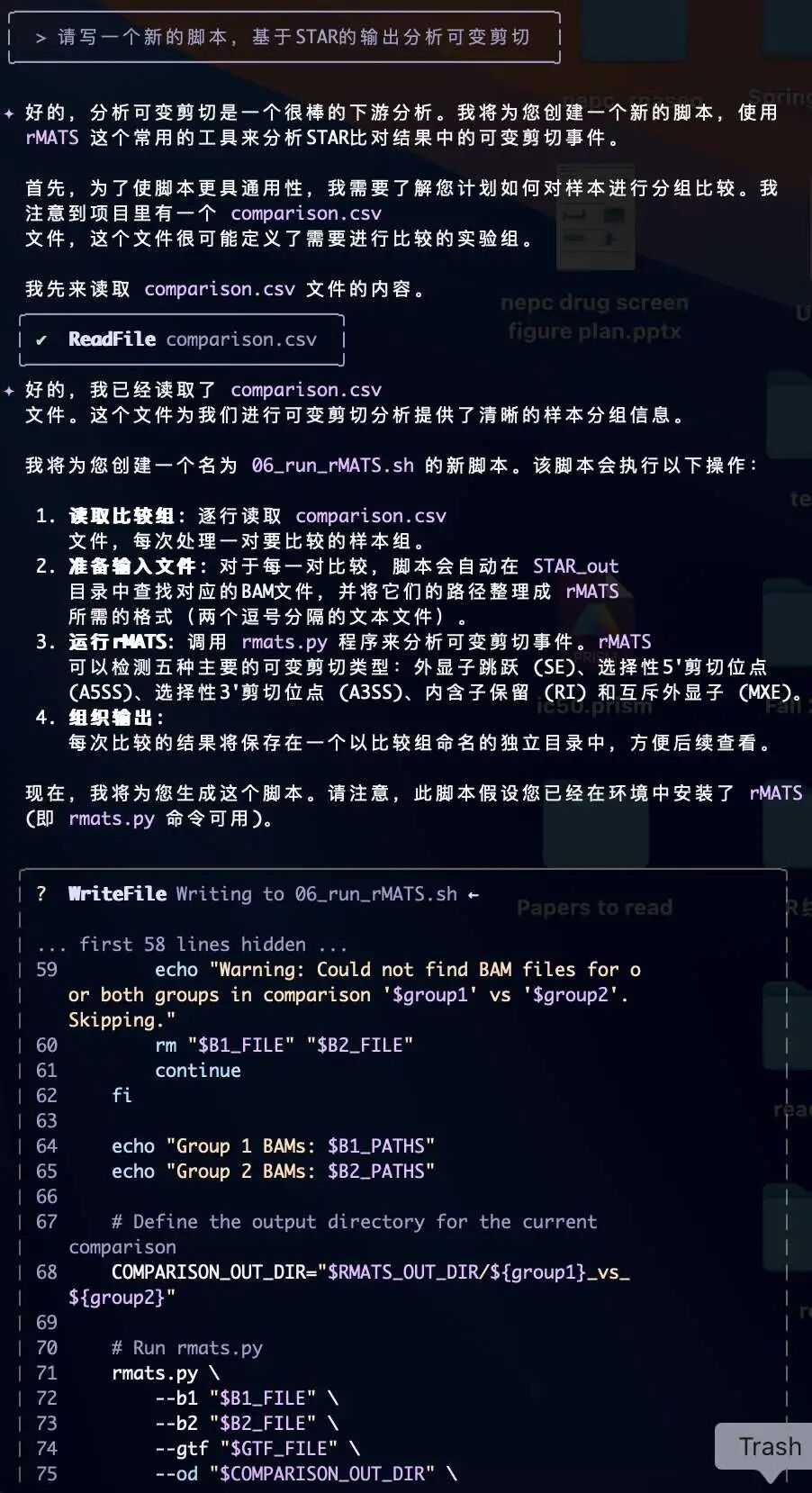
Example 3: Adding New Features
Suppose we want to add an alternative splicing analysis. We can have Gemini CLI generate a new script and integrate it into the existing workflow.
Use Case 2: Deep Research
The Deep Research feature that major LLM providers are so proud of can now be easily done through Gemini CLI — and it can generate reports in your specified format directly on your local machine:
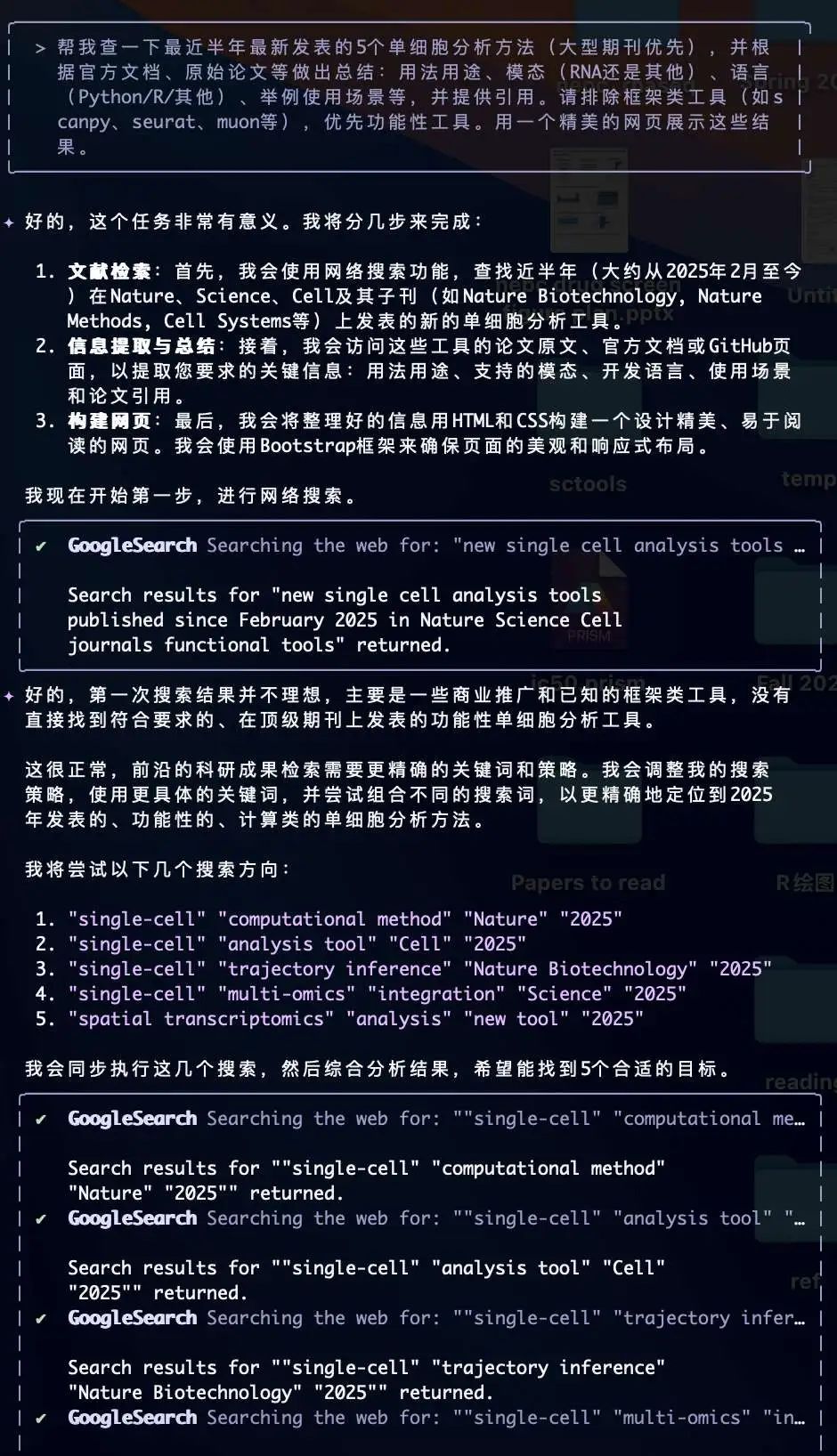
The entire reasoning and execution process is transparent — you can see that Gemini automatically adjusts its search strategy and performs follow-up searches. Very smart! Here's what the generated web report looks like:
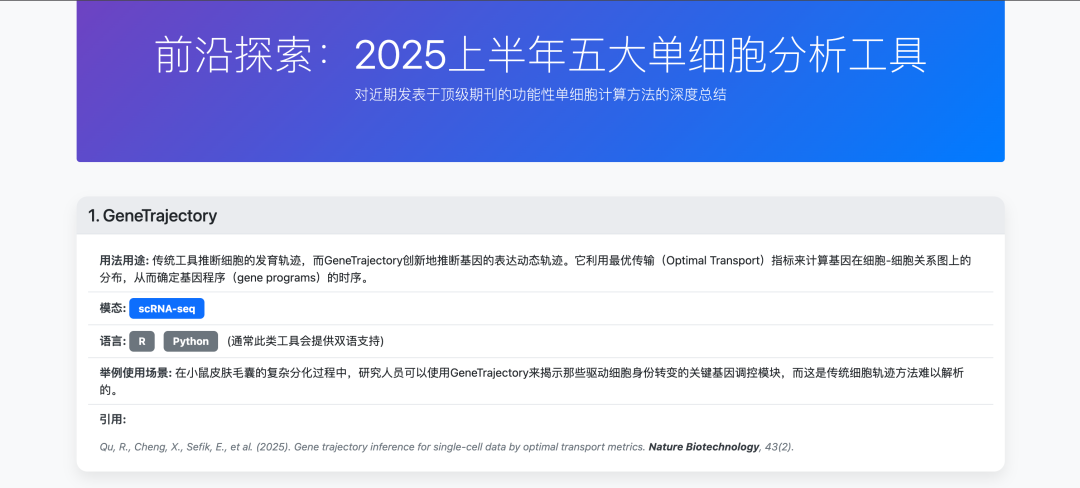
This entire process was completed with a single prompt — no additional guidance or tweaking needed. As you can see, the resulting webpage is quite clean and visually appealing.
Use Case 3: Analyzing Multimedia Files
Gemini CLI supports multimodal processing (video, images, audio, etc.). Say you want to quickly summarize a recorded talk and save it as a report:
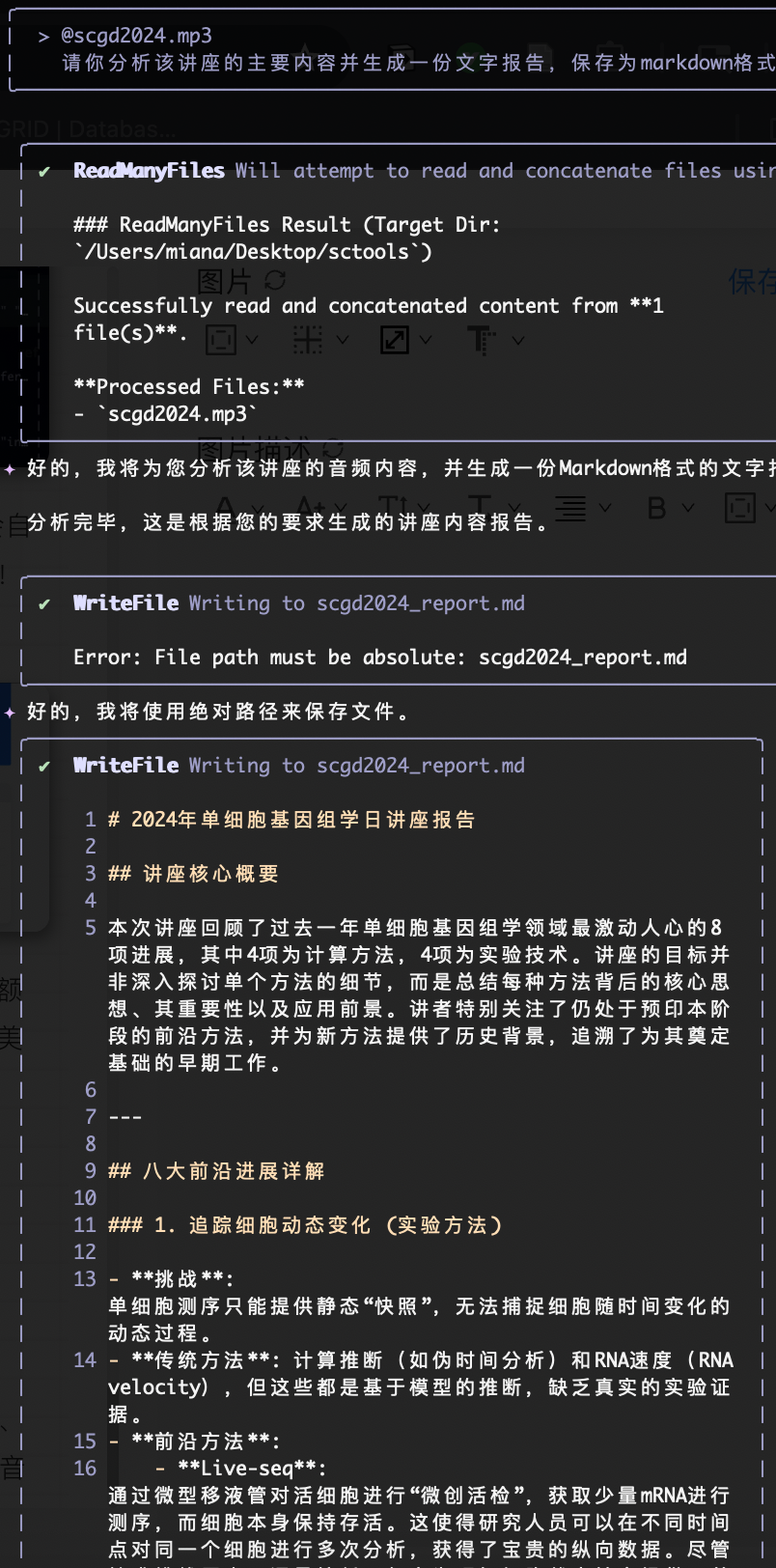
⚠️ Note: There is a 20 MB size limit per file. Larger files need to be compressed first.
Use Case 4: Connecting External MCP Tools
This use case is a bit more advanced. As a relatively straightforward example, we can use a Google Calendar MCP server to create and query instrument booking schedules.
Prerequisites: Google Cloud
- Go to the Google Cloud Console
- Create a new project or select an existing one
- Enable the Google Calendar API
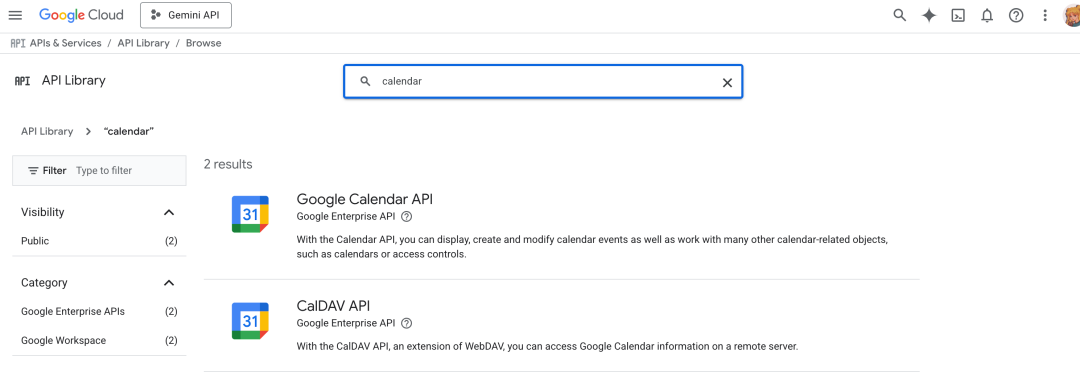
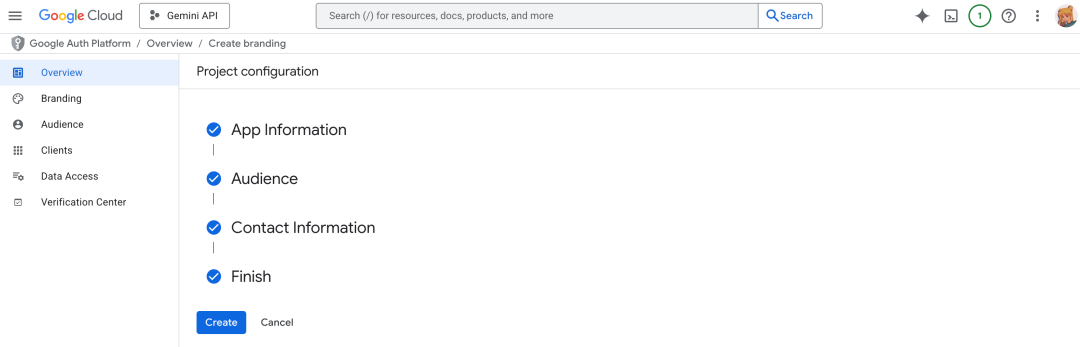
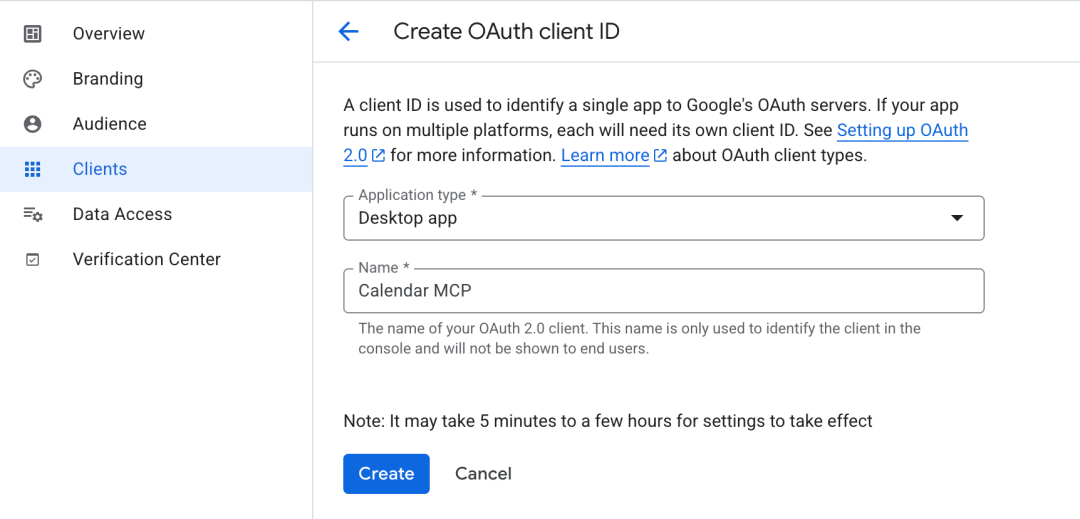
- Create OAuth 2.0 credentials:
- Fill in the basic information:
- Go to the "Credentials" page
- Click "Create Credentials" > "Create OAuth Client ID"
- Select "Desktop App" as the application type (Important!)
- Save the credential file (JSON format)
 ⚠️ Note: Testing credentials are only valid for 7 days
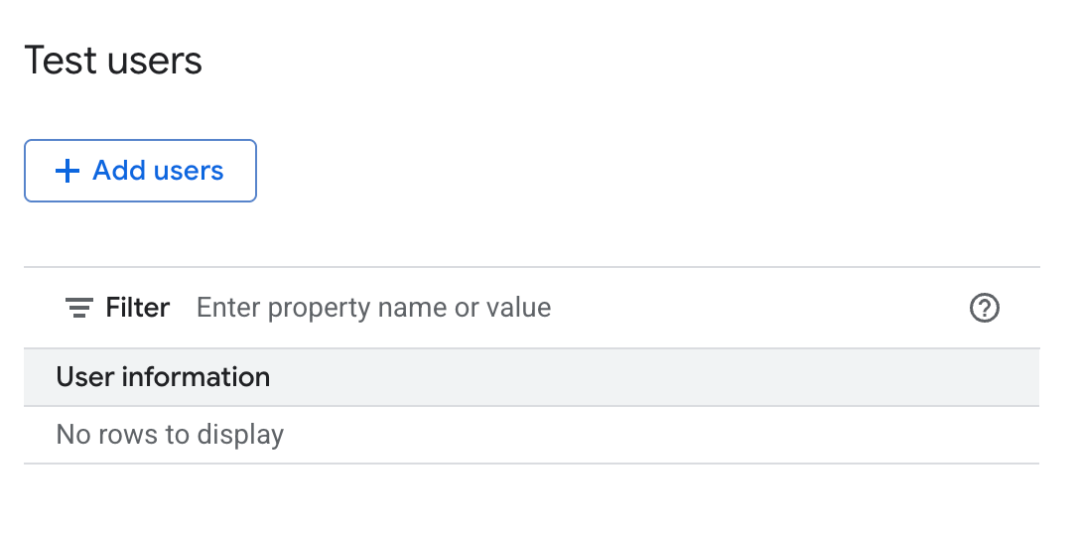
- Add test users
- Add your own email under Audience > Test users
- Publishing an immature app directly is not recommended
Configure the MCP Server
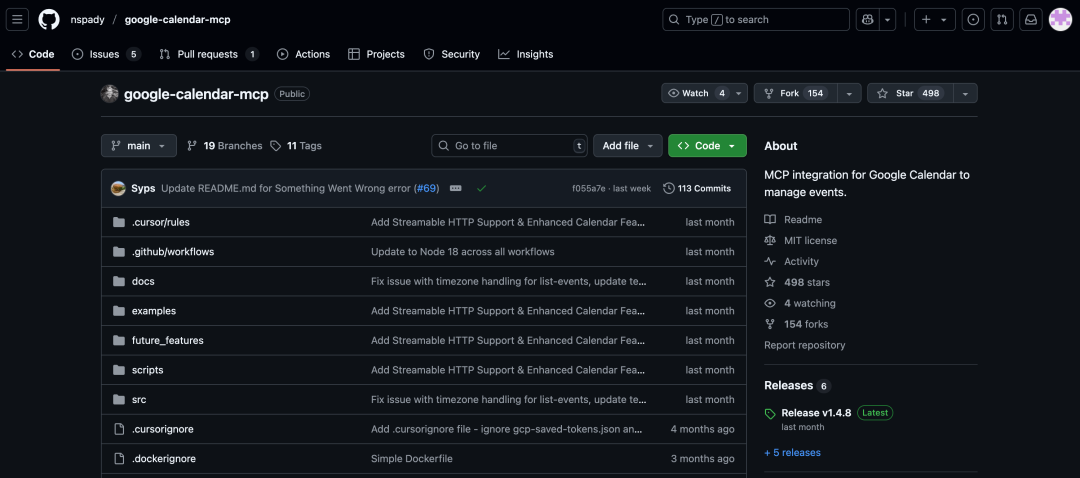
You can find a pre-built MCP server — for example, here's the one I used:
Configure Gemini CLI to Use the MCP Server
Edit the configuration file ~/.gemini/settings.json (back it up first!), replacing with your actual paths:
{
  "selectedAuthType": "#####",
  // Add the following section
  "mcpServers": {
    "google-calendar": {
      "command": "npx",
      "args": ["@cocal/google-calendar-mcp"],
      "env": {
        "GOOGLE_OAUTH_CREDENTIALS": "/path/to/credentials.json"
      }
    }
  }
}
Getting Started
gemini
This will open your browser for authorization — just click Continue to confirm.
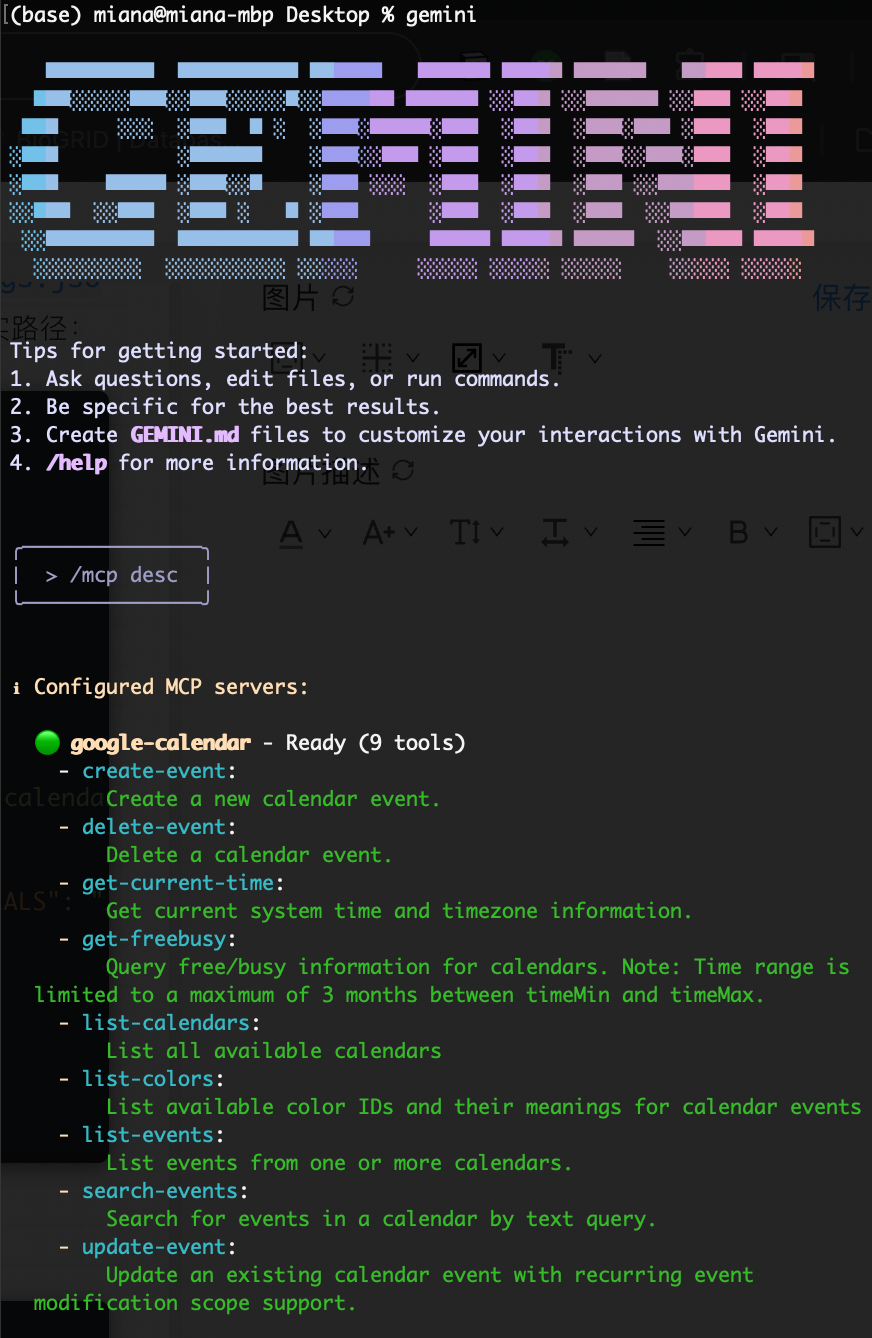
Once authorized, you'll see that it's ready to go!
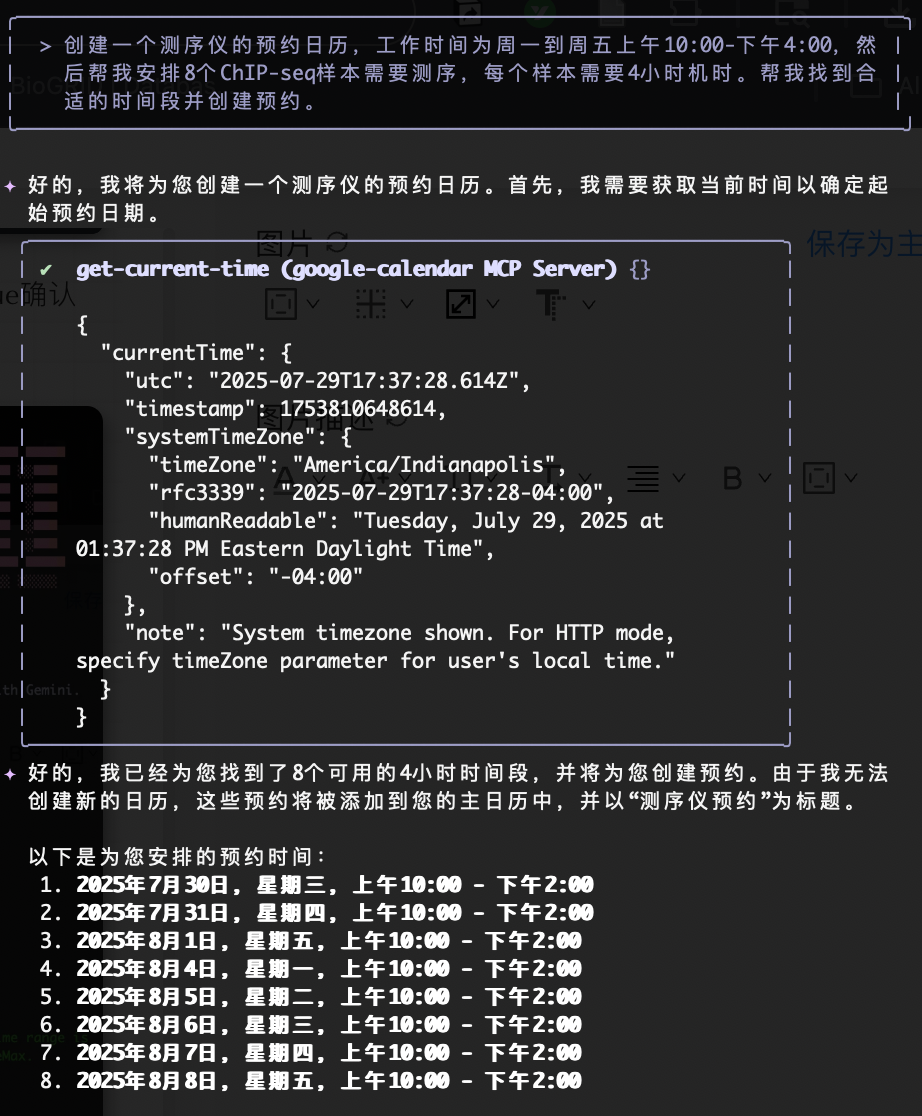
Suppose we need to create a sequencer booking calendar and schedule 8 samples for loading:
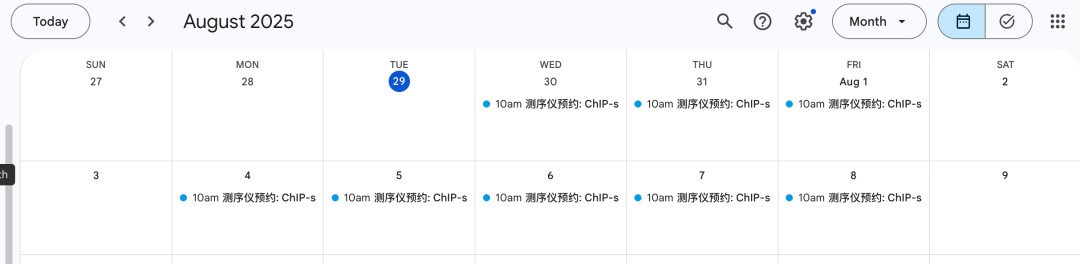
Open Google Calendar, and everything has been created:
You can also query available time slots directly within Gemini CLI:


More examples of other MCP tools are available here.
Use Case 5: Custom Models / APIs
While Gemini CLI is incredibly versatile, the requirement for a Google account or Google API key may be a barrier for some users. Additionally, the built-in Gemini model family doesn't always perform satisfactorily in every domain. Unfortunately, the official tool does not support third-party APIs or alternative models (such as DeepSeek). However, community enthusiasts have developed derivative tools based on Gemini CLI, such as Easy LLM CLI, which supports custom APIs and models. We haven't tried it ourselves, but interested readers are welcome to check it out!
References
- Official documentation: https://cloud.google.com/gemini/docs/codeassist/gemini-cli
- GitHub page: https://github.com/google-gemini/gemini-cli
- https://github.com/ConardLi/easy-llm-cli
Originally posted on WeChat Official Account: bioinfo_studyroom